Blog
The end of voice and SMS MFA
Multi-Factor Authentication (MFA) is changing and for the better! Currently there are lots of different MFA options when accessing Microsoft solutions, including text message and voice phone call MFA. Microsoft will be disabling these two options from the 28th January 2027, and directing users to update to Microsoft Authenticator and Passkey MFA.
The main reasons that they are disabling these two options is due to the growing vulnerabilities associated with these MFA options, including SIM swapping, phishing attacks and lack of user provided information.
So, what are the options?
Do nothing, and wait for Microsoft to prompt you to update your security option, this will guide you to “Passkey in Microsoft Authenticator“.
Passkey in Microsoft Authenticator
If you are currently using SMS or voice for your MFA, you will soon be asked to set up the Microsoft Authenticator app. There will be a prompt when you are logging into your Microsoft account, you will be give three chances to do so, after which your account will be blocked.
All you need to do is tap next and follow the guide to set up the authenticator app and the Passkey.
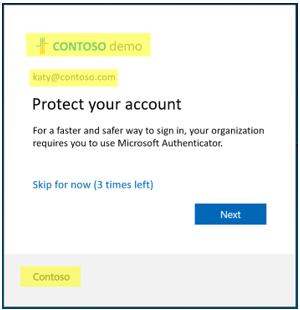
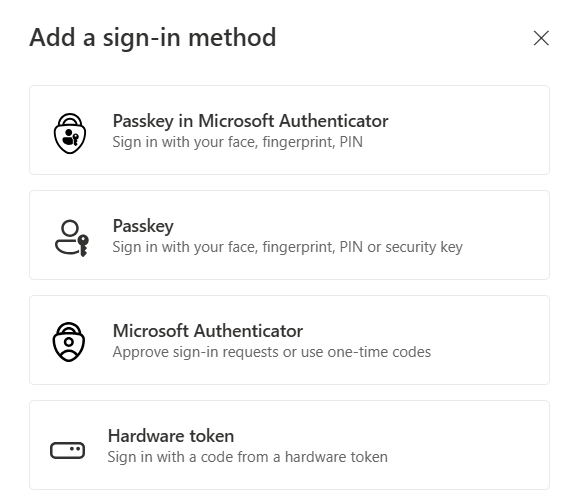
Alternatively, you can select the sign-in security process ahead of time, and choose “Passkey in Microsoft Authenticator“, “Passkey” or “Microsoft Authenticator“.
Passkey or Microsoft Authenticator
Step 1.
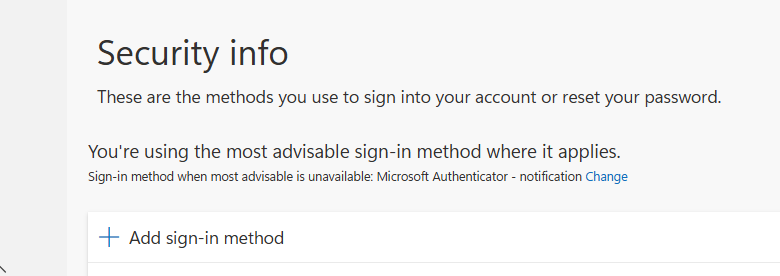
Go to mysignins.microsoft.com/security-info, click “Add sign-in method“. Then select the sign-in method “Passkey in Microsoft Authenticator“, “Passkey” or “Microsoft Authenticator“.
Step 2.
You may be asked to sign-in with your current MFA method. Select “Next“.
If you chose “Passkey in Microsoft Authenticator” jump to Step 4.
If you chose “Passkey” head to Step 3.
If you chose “Microsoft Authenticator” head to Step 5.
Step 3.
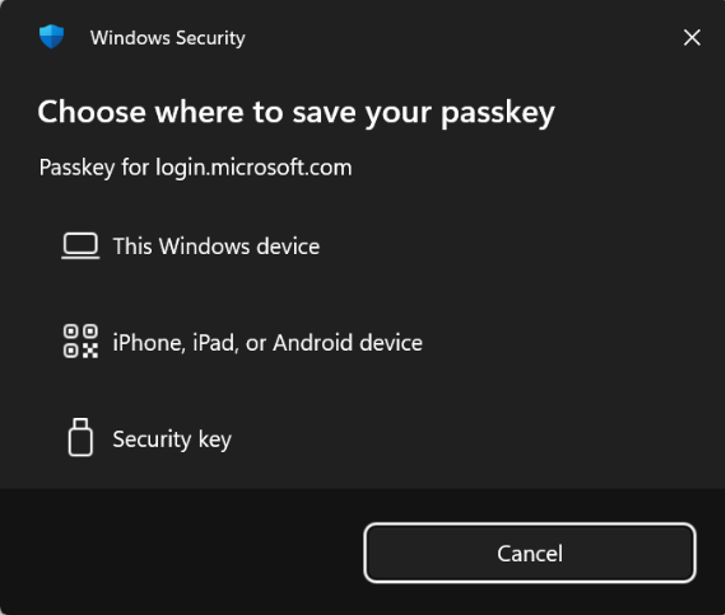
Select where you want to store the passkey. There will be multiple choice, the main two are:
“This Windows device” – this requires you to have already enabled Windows Hello. Go to Start menu > Settings > Accounts > Sign-in options and set-up either facial recognition, fingerprint recognition or a PIN.
This option is good if you use a dedicated Windows device, however if you share a device then you will need to select “iPhone, iPad or Android device“.
“iPhone, iPad or Android device” – this will store the passkey within the Microsoft Authenticator app on your device. If you do not already have the app you will be asked to install it.
The other secure option is “Security key” – you will be directed by your organisation or IT team if sign-in is to be managed this way.
Step 4.
If you selected “Passkey in Microsoft Authenticator” or “iPhone, iPad or Android device” you will be prompted to open the Microsoft Authenticator app, scan the QR code and save the passkey.
If you selected “This Windows device” you will be asked to authenticate the creation of the passkey, using the Windows Hello sign-in that you originally created, and the passkey will saved.
You are now good to go!
Step 5.
If you selected “Microsoft Authenticator” you will be prompted to install the the Microsoft Authenticator app on your mobile device, and to scan a QR code, this will set up a changing 6-digit code that you will need to enter each time to sign-in to your Microsoft account. Warning: Never share this code with anyone.
All too much – then give our team a call and we can help you navigate your options.
Frequently asked questions
After January 28, 2027, SMS and phone call verification will be permanently disabled. If you haven’t registered a passkey, you will be unable to sign in and will need to contact you IT team to help regain access.
No problem. Passkeys work on Windows PCs and with physical security keys (small USB/NFC devices).
No. Once your passkey is set up, signing in is actually faster than waiting for a text code or a voice call.
Yes. If they already use the Microsoft Authenticator app, they are unaffected by this change. This only impacts users who rely on SMS text codes or phone calls for verification.
A passkey is a modern sign-in method that uses your device’s built-in security (fingerprint, face recognition, or PIN) to verify it’s really you. Think of it like unlocking your phone but for your work account. Passkeys are phishing-resistant – they can’t be stolen or tricked out of you the way a text code can
Yes you can still use passkey, but it will need to be set up using the Microsoft Authenticator app on your mobile device and not using Windows Hello.
If you do not have a mobile device, and you do not share your computer, then you could use utilise Windows Hello to store the passkey. Alternatively, if that is not possible, please speak to your IT team to enquire about setting up a security key
If this is an absolute requirement, your organisation will need to purchase a telecom add-on through the Microsoft Security Store. Please speak to your Technical Account Manager

Jig Mehta
Is a Digital Marketing Manager at Select Technology, he has been part of the team for over 6 years, and has a keen interest in technology, whether its technical specs, cybersecurity or AI!